SSH Remote Login and TCP Forwarding
Security Shell Protocal (SSH) is a network protocol, intended to provide secure encrypted communicatons over an insecure network. SSH application are based on a client/server architecture, SSH client is used to log into a remote machine (SSH Server) and execute commands on a remote machine. The most common usages include:
- SSH Remote login
- Arbitrary TCP ports forwarding
SSH Remote Login
There are many methods for authentication, most common methods are password authentication and public key authentication.
ssh will store host identifications in ~/.ssh/known_hosts file when logging in to a remote ssh server for the first,
which means it will save information for each host it has ever visited.
Password Authentication
If you do not config any authentication methods, the ssh will prompts you for a password.
$ ssh username@ip
username@ip‘s password:
The default port of SSH service is 22, if the ssh service is not started on the default port, you need to specify the port with -p option:
$ ssh -p 1234 username@ip
If a host’s identification changes, ssh will warn for this and disable the password authentication to prevent server spoofing or man-in-the-middle attacks, which could otherwise be used to circumvent the encryption.
Public Key Authentication
Public key authentication is based on public-key cryptography, using cryptosystems where encryption and decription are done with separate keys. Using public key authentication can avoid entering password everytime you log in, you should generate a public-private key pair on the client, and copy the public key to remote server, then you can log in remote server conveniently.
Generate Key Pair
There are many public-key protocols and algorithms, here we use RSA algorithm, type command in client machine:
$ ssh-keygen -t rsa
This command will generate ~/.ssh/ directory, and ~/.ssh/id_rsa file generated represents private key, ~/.ssh/id_rsa.pub represents public key.
Copy Public Key to Server
Server machine should store public key of client in ~/.ssh/authorized_keys file, there are two methods to copy public key:
- Use
ssh-copy-idcommand in client:$ ssh-copy-id remote_username@ip - Write
id_rsa.pubof client to~/.ssh/authorized_keysof server directly:(client) $ cat ~/.ssh/id_rsa.pub (server) $ vim ~/.ssh/authorized_keys
Login with Client
Now you can log into remote server like Password Authentication, but no need to enter password anymore.
To simplify the command, you can also create ~/.ssh/config file and add Host:
Host wechar
  HostName <remote_ip>
  User wechar
  IdentityFile ~/.ssh/id_rsa
Then you can login with just:
$ ssh wechar
For the further step, if you have to access the devices in a separate security ozone through jump server, you can config like:
Host jump
  HostName <jump_ip>
  User username
  IdentityFile ~/.ssh/id_rsa

Host dev01 # must access through jump server, access dev01 as username
  HostName <dev01_ip>
  ProxyJump jump
  ProxyCommand  sudo ssh -W %h:%p jump

Host dev02 # access dev02 as another_user
  HostName <dev02_ip>
  IdentityFile ~/.ssh/id_rsa
  User another_user
  ProxyCommand ssh -W %h:%p jump
TCP Forwarding
Forwarding of arbitry TCP connections over a secure channel can be specified with option:
-L [bind_address:]port:target_host:target_hostport
This will allocate a socket to listen to the target socket, once a connection is made to local port, the connection is forwarded over the secure channel.
Take an example, we forward 10.128.1.1:4990 to local port of 5900 through jump server jump:
$ ssh -f -N -L 5900:10.128.1.1:4990 jump
-foption: Backgrounds ssh-Noption: Do not execute a remote command, just forwarding ports
There are many application of TCP forwarding.
JVM Remote Debug
We can use TCP forwarding to debug for java application in remote server, steps like this:
- start java application with options:
java -agentlib:jdwp=transport=dt_socket,server=y,suspend=n,address=4990 -cp "Test.jar:lib/*" org.wechar.Main - config remote debugger in Idea:
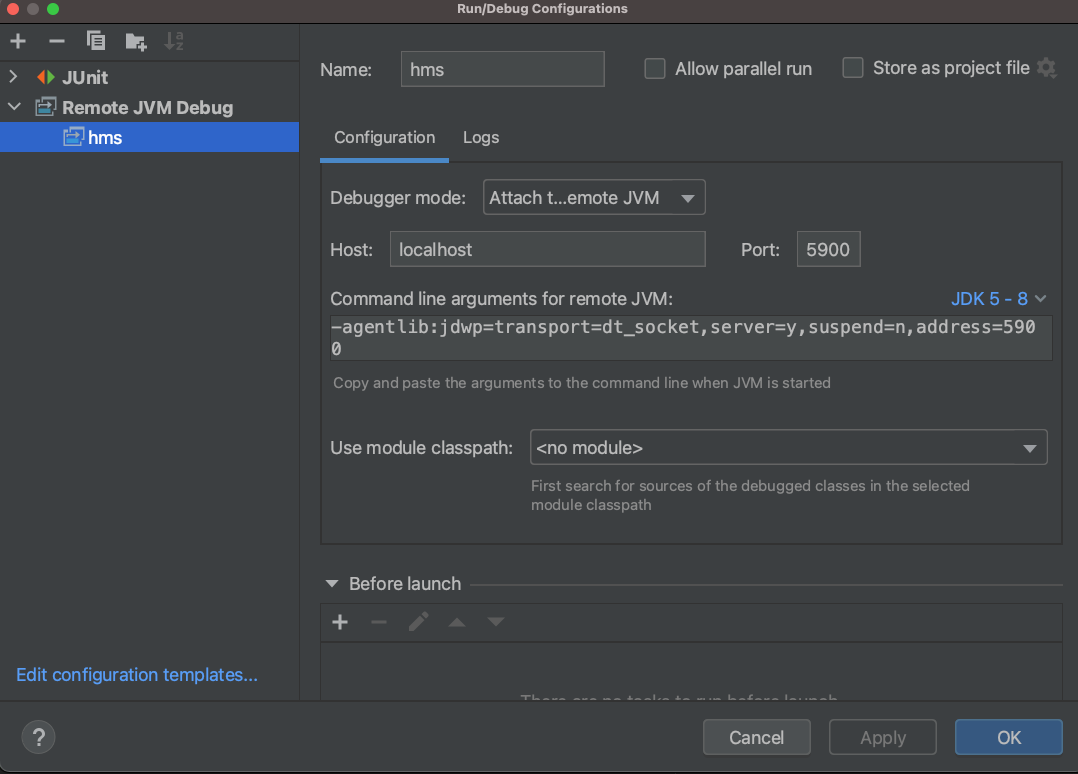
Then you can debug remote java application just like local application.